Sequencing
Sequencing
One of the key logical constructs in programming is that of sequencing. Sequencing refers to the creation of step by step instructions, that when followed produces the correct result.
This is similar to how you might follow the instructions in a recipe. While some steps can be done in any order without consequences to the final result, this does not apply to every step. For example, if we were to put together all the dry ingredients for baking a cake, it doesn't matter if we add flour to the mixing bowl first or if we add salt... as long as all the dry ingredients are added. However, if the instructions called for beating some eggs and we did not break the eggs open first the result would be very different.
In programming we often need to create a sequence of instructions. Like following a recipe, we need to ensure that all the things we need for each step are in a correct state before we continue to the next step.
To illustrate this, let us consider this example program
Echo Example
Consider the problem of writing a program called echo that do the following:
- Ask the user to enter a whole number (no decimal places)
- Display the number that user entered back to the user (echo the input)
Here is a video of how this program will work:
This program is not particularly interesting but it adds a few important elements to our original hello world program
Hello world was exclusively an output program. In this program we are also going to get input for our program by reading information from the user. This information will then be displayed back to the user so that they know it was properly received. This displaying is also sometimes called echoing. Thus, the name of our program.
Our Sequence
To accomplish this task we need to do the following sequence of steps:
- Create a place to put the information we read from the user - declare a variable
- Prompt the user for a number (output) - this is just words on the screen telling the user what to do
- Read in the number (input) - read in what the user enters
- Display information that we have stored (output) - display the result back to the user
Here is a flow chart showing the flow of our sequence of steps:
Notice that very few of these above steps can be done in a different order
- Before we can read information from the user, we have to create a variable to hold onto that information.
- To tell the user of the program what they are suppose to do next, we need to create write a prompt stating the program's expectations.
- We cannot output what the user enters until after we read the information.
While it is possible to prompt user before declaring variables, we typically do not do this. The convention in C programs is to declare all necessary variables before we perform the logical steps.
Our Program:
Here is the source code for this program:
#include <stdio.h>

int main(void){
    int userInput;                          //declare a variable

    printf("Please enter a number: ");      //print a prompt
    scanf("%d",&userInput);                 //read in the information
    printf("You entered: %d\n", userInput); //echo the input
    return 0;

}
Explanation
A Place to Store Information
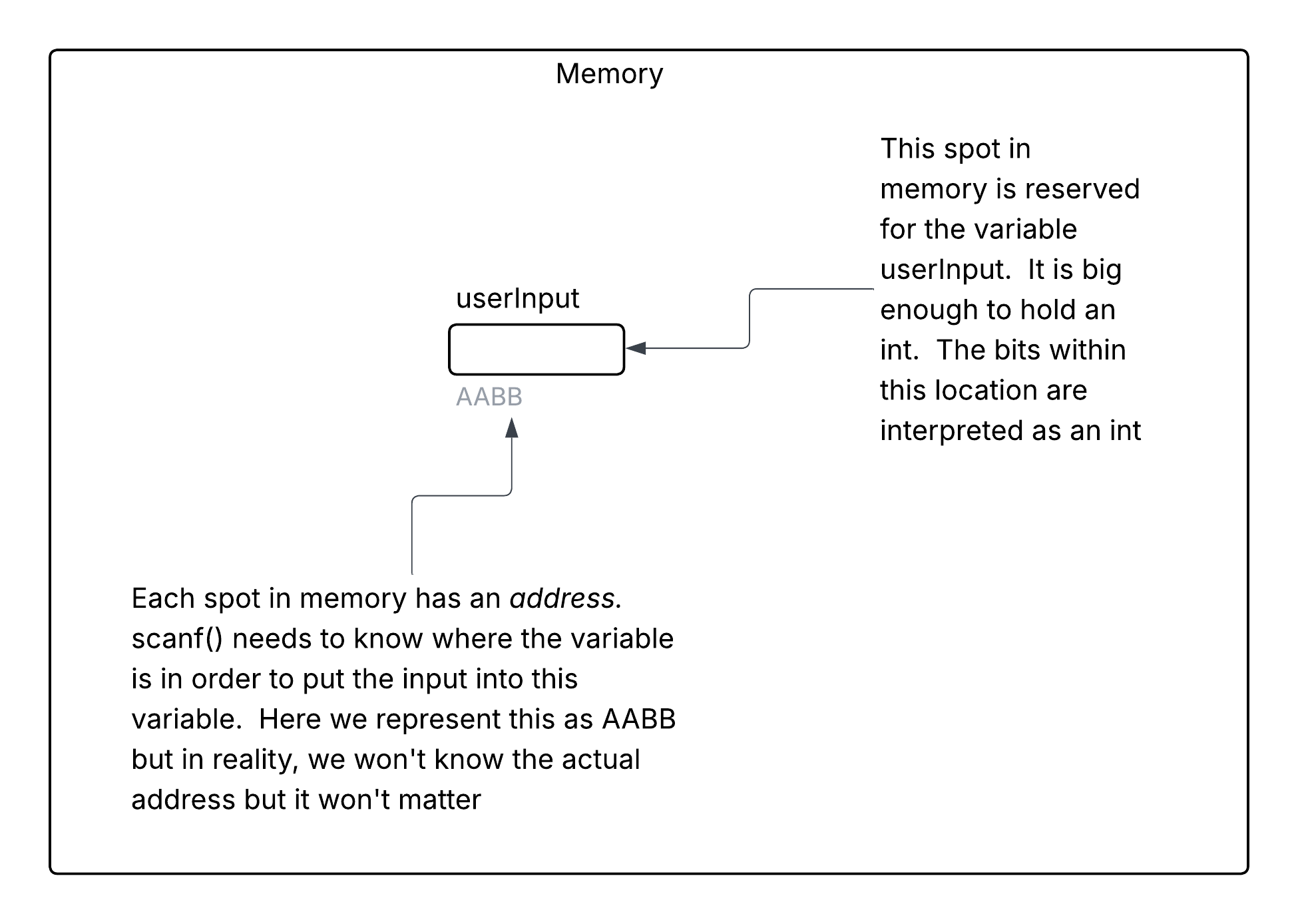
This line of code in our program declares a variables. This is essentially asking for a spot in memory to store a piece of information.
int userInput; //declare a variable
The above can be visualized as follows:
In C, the syntax to declare any variable is the following:
typename variablename;
The typename of a variable defines: _ amount of memory we use for our data _ the type of data that we can store
The variablename is a label that we use to refer to this piece of information. While there are some rules for what is allowed for this label, we can use anything we want as long as it conforms to those rules.
We want the user to enter a whole number. The typename for this kind of variable is int which is short for integer.
The variablename is userInput. We want to name our variables so that it is a descriptive label for what we are storing.
A Function for Input
One of the functions that we can use to read data from the user is the scanf() function. This function is also part of the stdio library so we any program where we use this function will require that we include its header.
For both printf() and scanf() we have to provide arguments. Both of these functions expect a string as its first argument. This string is called a format string. In the case of the printf(), the format string indicates what is printed to the screen and the formatting of that output. In the case of scanf(), the format string indicates the format of the incoming data. We will go over this in more detail in a later section of the notes. For now, let us look at the 3 lines of our program that involves printf and scanf and look at how these work together.
This first line is not all that different from the code we wrote for Hello world.
printf("Please enter a number: "); //print a prompt
"Please enter a number: " is our format string. It is a simple output statement. What you will notice is that there is no \n at the end of this format string. The reason for this is because we want what the user enters to be placed on the same line as this prompt. If we wanted the data entry to be on the next line, we would put a \n at the end of this prompt.
This next line is our first line for input.
scanf("%d",&userInput); //read in the information
To do input, we use the scanf() function. Note that input and output are completely separate in C. scanf() can only do input, printf() can only do output. They are not interchangeable and you can't do input and output with the same function.
In this scanf() there are two arguments:
- "%d"
- &userInput
the first argument is always format string. All subsequent arguments to scanf are locations of where the data that is entered gets placed.
The format string is "%d". %d is what we call a format code. A format code tells the scanf() function what the expected input looks like. All format codes begin with %. the d indicates that the input is a base 10 whole numbers - d for decimal...or base 10.
The second argument is &userInput. userInput is the variable that we had declared earlier. The & is the address-of operator. Thus, &userInput is address of userInput. In otherwords we are providing the function with the location of userInput. This is needed because scanf has to place the values read from the user into this variable. It must therefore know where it is. It is not good enough to simply know the contents of that variable.
Displaying Stored Information
The last line before the return statement is this:
printf("You entered: %d\n", userInput); //echo the input
Here we see something new in how we use this printf() statement. This function call to printf() has two arguments
- "You entered: %d\n"
- userInput
This format string is different from previous example as it contains the format code %d. This %d is an indication to printf of where to put the value stored inside our variable.
The second argument userInput is the variable that contains the value we wish to place into the format code. For each format code present in the format string you will need a different variable.
Styling Conventions
You will notice that in the program above, all of the statements inside the main() function were indented. They are 4 spaces from the left edge of the page. You will also notice that the main() function statement and the curly brackets that indicate the start and end of main were not indented. This is by design and is part of the styling conventions we follow. the curly brackets indicate the start and end of of a block of code. We generally indent by a fixed width within a block of code. The number of spaces used per indentation is fixed within the same program. for consistency. However the exact number of spaces depends on the project's style guide. For this course, we will use 4 spaces for indentation width. The actual indentation can be created by setting a tab width of 4 characters and hitting the tab key. Alternatively you can simply type 4 spaces (or set up your IDE so that it turns a tab keystroke into 4 spaces). Whether you indent with spaces or tabs is your decision... however you need to be consistent about this. Thus you should always use tabs or always use spaces but not both.
For more information about styling check out the style guide